
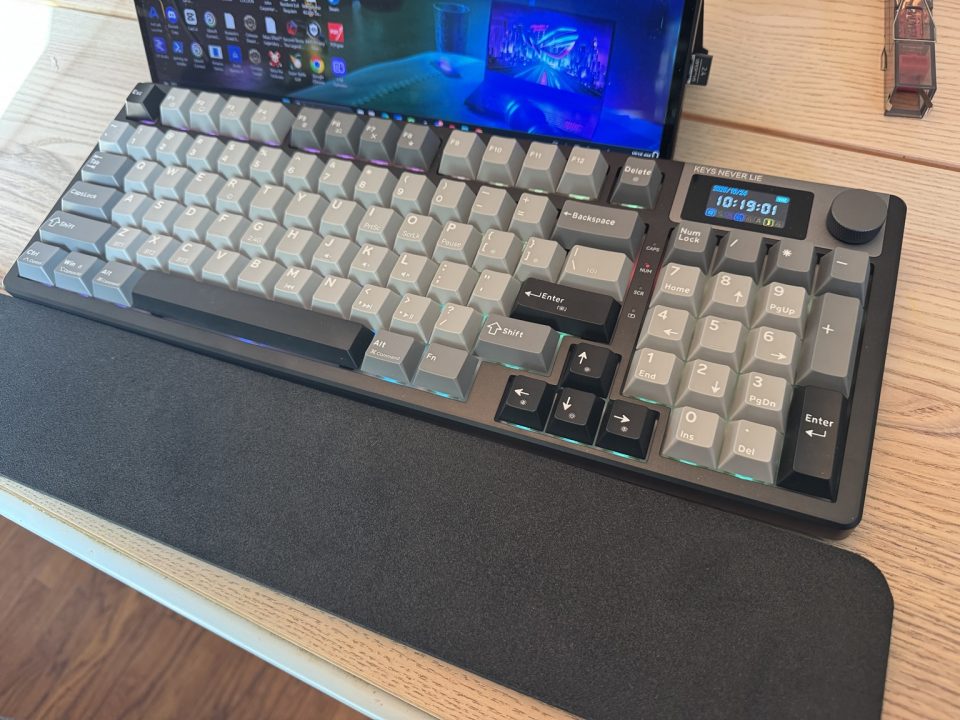
What is the KEMOVE K94 Keyboard?
The KEMOVE K94 has made a good impression on me, especially for writing. After about a week of productivity use, I want to keep using it. The smooth typing has been the best part, though getting comfortable with the layout and figuring out its extra features took some work.
For gaming, I generally prefer a controller. Keyboards are a different story at work, where I spend much of the day writing and editing. A numpad is essential to me, along with familiar access to the navigation keys. My usual Logitech keyboard doesn’t feel as nice when I’m typing, but it has the functions I need where I expect them. That matters when you’re trying to get work done.
| Feature | Specification |
|---|---|
| Layout | 94 keys with numpad |
| Connections | USB-C wired, 2.4 GHz wireless and Bluetooth |
| Keycaps | Double-shot PBT |
| Case | Plastic |
| Mounting | Gasket mount |
| Switch support | Hot-swappable mechanical switches |
| Battery | 8,000 mAh |
| Lighting | South-facing RGB |
| Configuration | QMK/VIA support in wired mode |
| Controls | Screen and metal rotary knob |
| Listed price | $99.99 |
| Warranty | One year |
Unboxing and Build Quality
The plain white box with metallic silver labeling makes a nice first impression. Inside, my package included the keyboard in a protective bag, a USB cable, spare switches, and tools for removing keycaps and switches.
Taking the keyboard out, the weight immediately stood out. It feels substantial, and I like that a lot. The plastic body feels solid, and the pads hold it in place on my desk. My Razer gives me a different reference with its metal construction, but the K94 doesn’t feel flimsy in use. The rear folding feet let you raise the back for an angled typing position.
The numpad was the first thing I was happy to see. Then there was the small screen and the rotary dial beside it. Between those and the RGB lighting on my darker-colored model, there’s plenty here that I wanted to explore. The box also lists PBT double-shot keycaps and hot-swappable switches, which can be replaced without soldering.
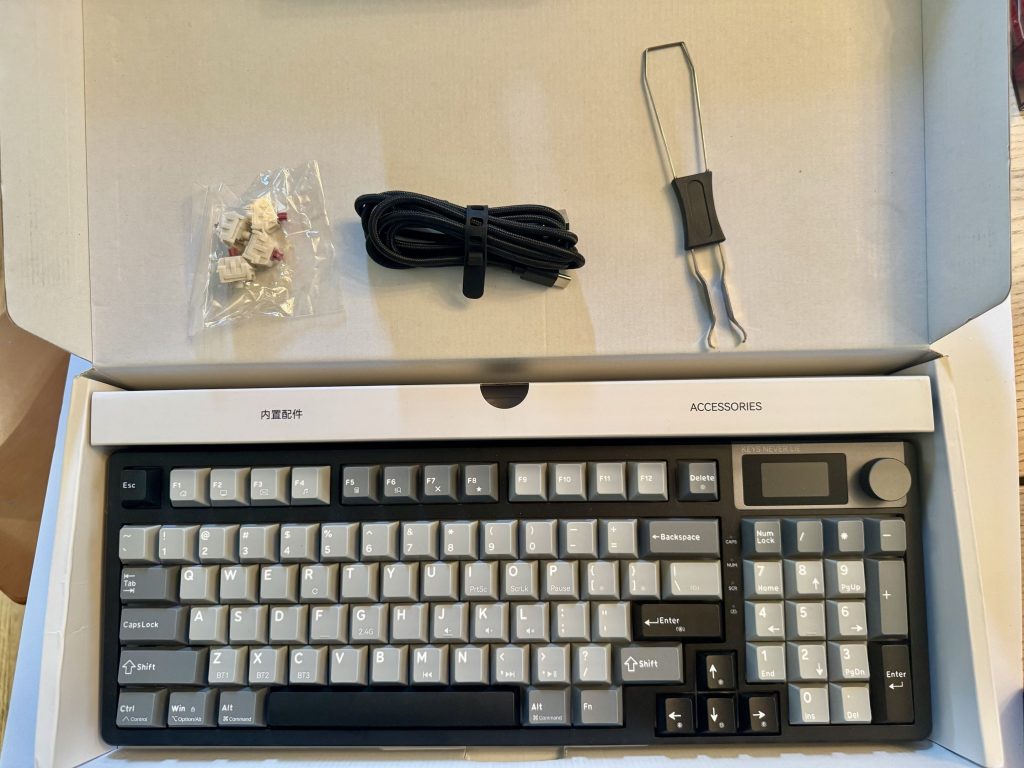
Using the Four-Key Puller
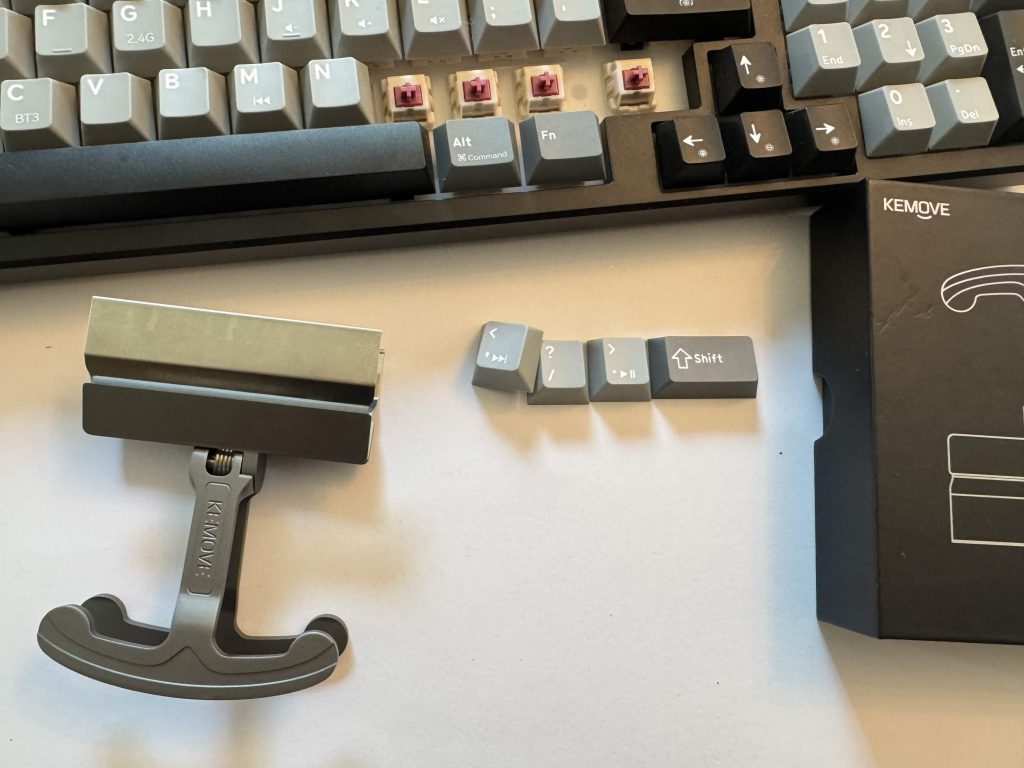
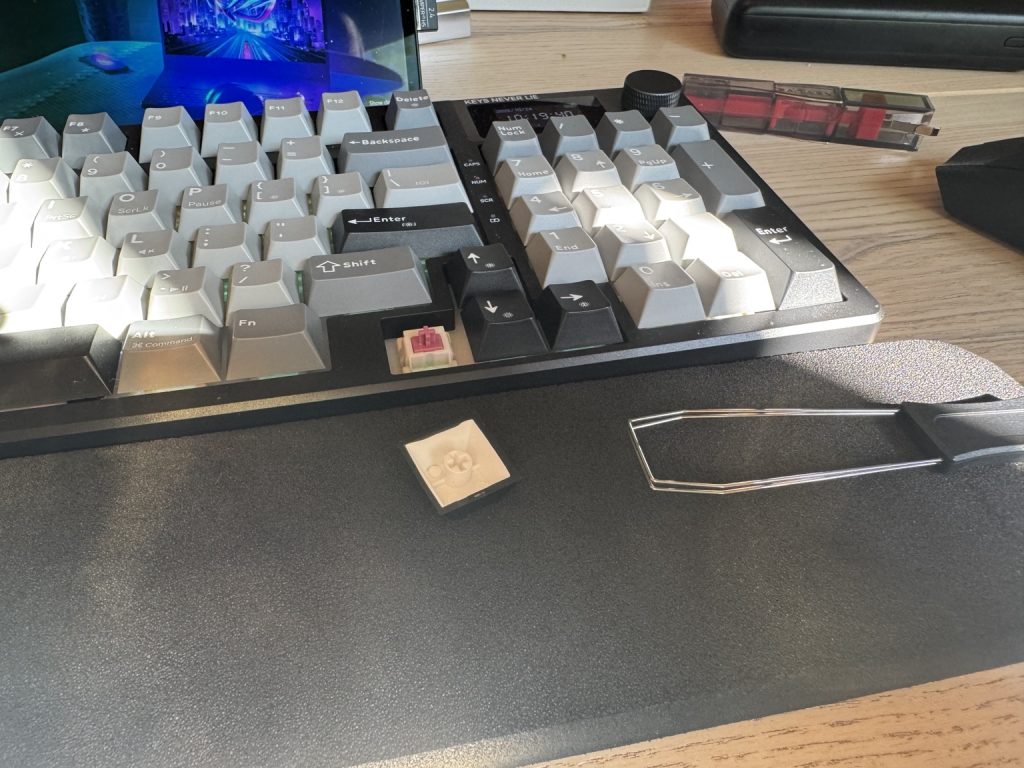
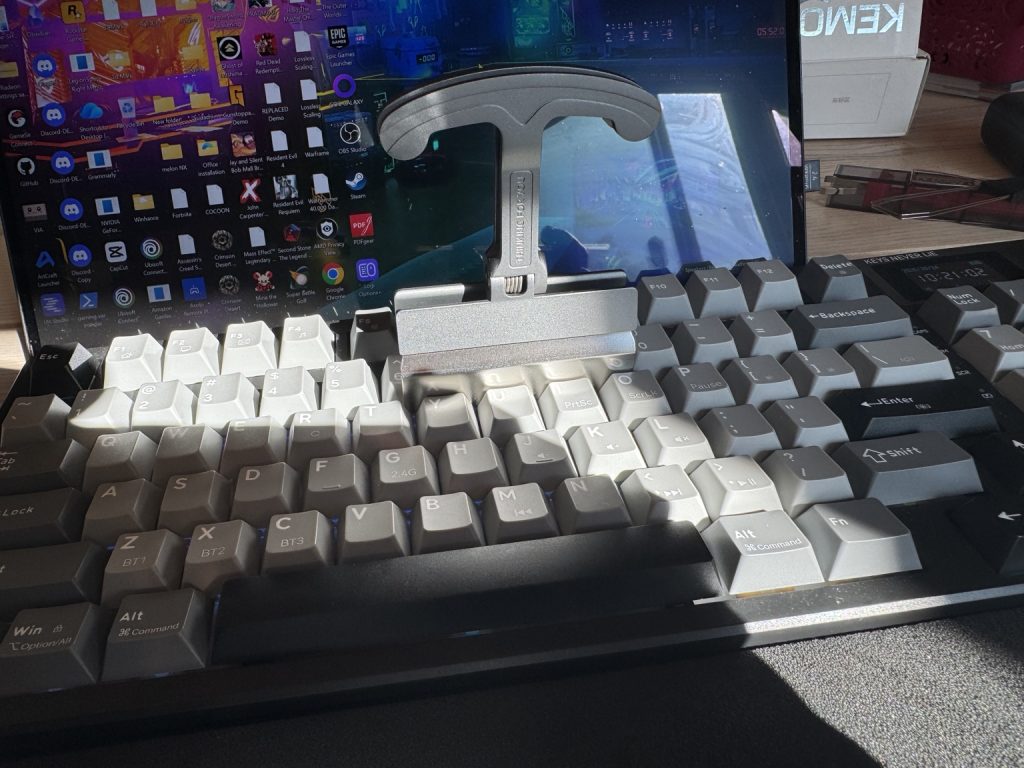
The four-key puller felt awkward at first. Getting it underneath four keycaps took some wiggling, and I had to feel around to make sure it had gripped them before pulling. Once it was in place, though, all four came off together. The tool feels really solid, with a matte metal handle and a spring that snaps it back open. Removing the first group also left a gap that made getting underneath the next keys easier.
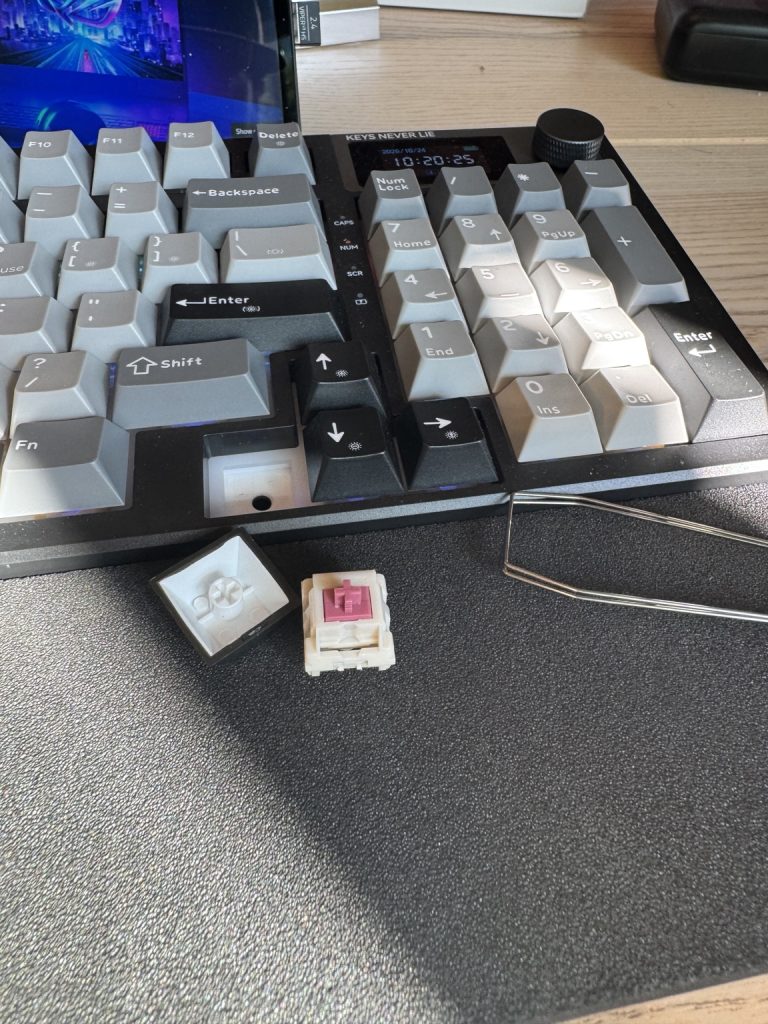
Putting the keycaps back gave me a brief scare. After removing a few along the bottom row, I went back to typing and found that pressing M produced N, and vice versa. For a moment, I thought something was wrong with the keyboard. Then I remembered that I had removed the keycaps and put them back in the wrong positions. Swapping them back fixed my problem. Newbie mistake, but a useful reminder to check the layout when putting everything back.
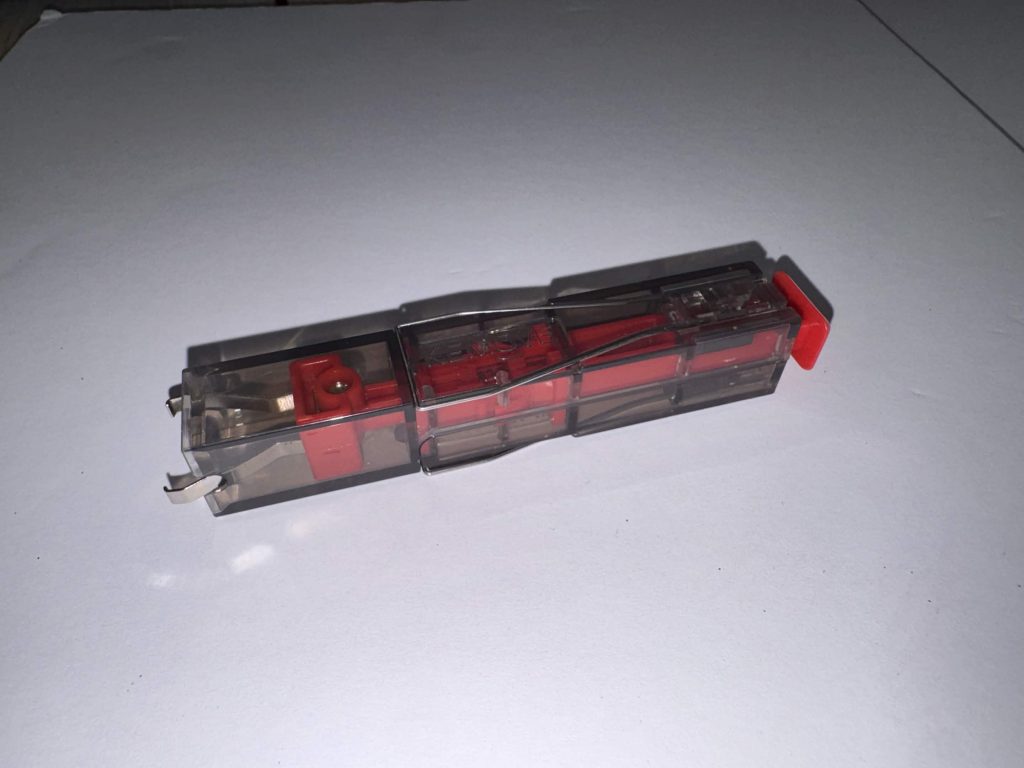
KEMOVE P10 Switch and Keycap Puller
KEMOVE also sent its P10 2-in-1 Semi-Auto Switch & Keycap Puller. The keyboard comes with basic tools for both jobs, but I really like this upgrade. The switch puller clicks when it locks onto a switch, giving me a clear indication that I’ve got hold of it. After removal, pressing the button on top releases the switch from the tool. That spring action feels good to use, and the see-through body with its red internal mechanism looks sleek.
The other end has a wire keycap puller for removing individual caps. Getting the wires underneath a keycap takes a little turning, but once they’re in place, it works well. Between the P10 for individual keycaps and switches and the four-key puller for groups of caps, these extra accessories make the process easier. They’re tools I’d want to keep around.
Typing on the KEMOVE K94
For production work, the typing feels smooth and natural. It’s almost like writing with a calligraphy pen rather than a pencil. There’s less of that sense of friction as the words come out. You can just tap away, and it feels like the keyboard takes your typing wonderfully.
Normally, the shorter, laptop-style keystroke of my usual keyboard feels comfortable for long stretches of writing. The K94 has surprised me here. Its softer feedback is very appreciated when I’m working, even though my initial reaction was that I wanted something clickier.
There’s a very clicky Razer mechanical keyboard in my collection, too. It gives me stronger feedback, but it isn’t as comfortable for typing. After using the K94 for work and a little gaming, I like what the supplied switches offer.
Published hands-on identification points to Jixian Blueberry linear switches. Linear means a smooth press without a deliberate tactile bump or click. That fits my experience, although the exact switch variant in this review unit still needs confirmation.
Home, End and My Editing Workflow
That lovely typing experience initially ran into a problem when I reached for Home and End. In Word and other Office applications, I do a lot without touching the mouse. Moving the cursor, selecting text, copying and pasting are all part of that routine.
The K94’s keys don’t feel small to me. It’s the compact placement and access to familiar functions that take some adjustment. Moving Home and End onto an unrelated key wouldn’t put them where my hands expect them.
Then I noticed the navigation functions printed on the numpad. Turning Num Lock off gives me access to Home and End there. After trying that during a little writing, it felt workable. I don’t have to hold a function key, although I do have to remember which mode I’m using.
That matters because number entry is second nature to me. I worked at a bank, and using the numpad became as familiar as typing. Switching Num Lock adds a step when I move between writing and entering numbers, but finding those functions changed my view of the layout. This can work in my production workflow.
Height and Wrist Support
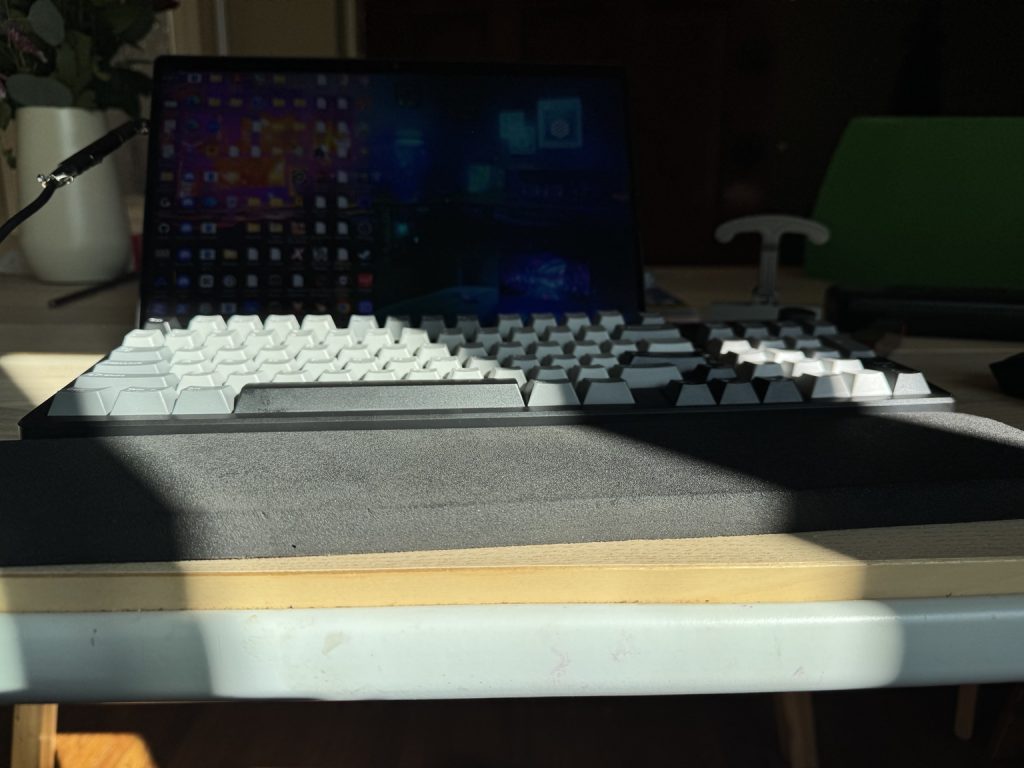
My keyboard didn’t come with a wrist rest, and its raised profile meant I needed one to type comfortably. An approximately three-quarter-inch foam rest gave my palms somewhere to sit and made the setup comfortable for me.
An aftermarket rest can address that, but I’d have liked one included. The height is something I’d tell anyone coming from a flatter keyboard to consider alongside the typing feel. My solution worked; it also meant adding something to the package before I was comfortable using it.
Making Sense of the Setup
Ordinary typing worked before I opened any configuration tools. The trouble was understanding what those tools were for and how to get started. The paper insert pointed me toward a website and downloadable files, but I didn’t understand how the pieces fit together. Some of what I encountered was in Chinese. Eventually, I needed AI guidance to help me through the process.
Workdays don’t wait for people to understand how to install their keyboards. Trying to figure this out, among other things, took time, and the instructions didn’t give me the introduction I needed. The clock was also incorrect initially, though it was synchronized during setup.
The official K94 support page separates the tools: KEMOVE Web Hub handles clock syncing and screen image uploads. VIA handles key assignments and layers. Loading its keyboard definition file isn’t flashing firmware. These configuration tools require a USB connection.
Once everything was working, I mostly left the software alone and used the knob and screen. The browser-based approach itself isn’t my objection. I needed something to explain that approach before sending me through it.
Screen, Knob and Lighting
The screen is small, with large bezels, but it looks nice. Having the time on the keyboard is useful when a game fills my computer screen. It also shows the date, battery level, connection mode, and lock status. Separate indicators on the keyboard give me another way to check Num Lock and Caps Lock.
The knob feels good to turn, and scrolling through the screen’s functions became intuitive once I explored them. The lighting menu lets me change effects, brightness, and animation speed directly on the keyboard. Going through the options, I counted about 46 effects.
I appreciate being able to control the RGB from the keyboard itself. My Flow Z13 has its own lighting, but these controls let me adjust the keyboard independently. They’re nice extras to have within reach. Uploading an animated personal logo is something I still want to try.
There is one irritation: after inactivity, the screen and lighting turn off. On my rough count, the screen took about five seconds to return when I resumed using it. That’s a display wake observation, not a measured delay in typing, but it interrupts that at-a-glance usefulness.
Wireless Use and Gaming
The K94 offers USB-C wired, Bluetooth, and a 2.4 GHz receiver connection. Finding the receiver beneath a magnetic cover on the underside was a nice touch. Three Bluetooth slots are particularly appealing because I regularly use multiple devices. I’d like to have five, to be honest, but three is good.
Once I learned the shortcuts, switching between the two devices I tried was seamless. The secondary functions printed on the keycaps helped me find my way around. Physical switches on the back also select connection mode and Windows or Mac layout.
For gaming, I played Redout on my Flow Z13 over Bluetooth. I’m a controller player, so getting used to WASD was part of the experience. The first race, I got creamed. By the third, I was doing much better against the AI.
Light taps felt responsive, and I enjoyed playing on it. Those races give me a positive casual gaming impression. They don’t establish measured latency or how the wired and receiver modes compare. I also haven’t established a reliable battery-runtime figure. The listed 8,000 mAh capacity is a specification, not a result from my testing.
Closing Thoughts
After a week, I like the K94 enough to keep using it. The typing feel makes writing enjoyable, the body stays put, and switching between my two Bluetooth devices has been straightforward. The screen and knob give me features I appreciate having on the keyboard.
Finding Home and End on the numpad also changed the decision for me. Managing Num Lock is an adjustment I can learn. Without access to those functions, I’d have had a much harder time fitting this into my work.
The height and confusing introduction to customization remain drawbacks. My foam wrist rest helped with the first, and learning the controls helped with the second. At $99.99, I’d recommend the K94 to someone who writes extensively and wants a numpad. I’d also recommend buying a wrist rest, because it made the keyboard comfortable for me. KEMOVE should include one in the box.
For my own setup, I plan to buy a separate numpad. That would let me leave Num Lock off on the K94 for Home, End, and the other navigation functions while keeping number entry available beside it. It’s an extra purchase to suit my workflow, but I like typing on this keyboard enough to make that adjustment.
KEMOVE K94 Keyboard
Pros
Smooth, Enjoyable Typing
Solid feel and stable placement
Seamless Bluetooth switching between two tested devices
Useful screen, knob, and onboard lighting controls
Cons
Raised profile made a wrist rest necessary for me
Configuration instructions need a clearer introduction
Navigation and number entry share the numpad
Screen took roughly five seconds to wake
For more hardware reviews, check out LOGNET’s Gaming Gadgets coverage. For purchase options, please see Kemove’s website.
Disclosure: The keyboard, four-key keycap puller, and P10 switch and keycap puller were provided for review.
